
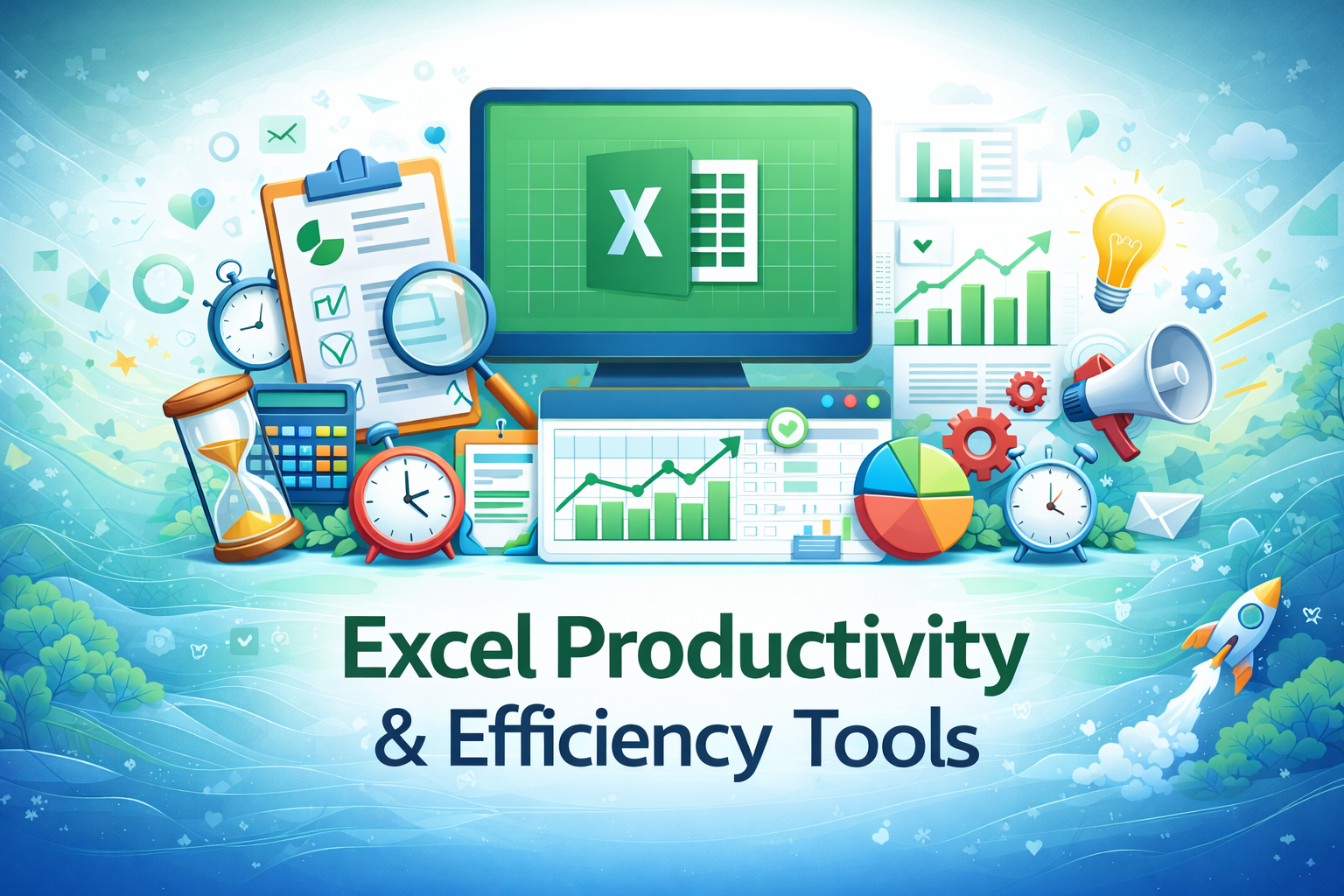
Excel Productivity & Efficiency Tools
This specialization focuses on using Excel productivity tools, shortcuts, and efficiency techniques to complete tasks faster, reduce errors, and improve overall work quality in professional environments.
Compare & Select from 100+
Best Universities for your Excel Productivity & Efficiency Tools
100% Placement Assistance
Overview
In professional environments, Excel users are often evaluated not only on what they can do, but also on how efficiently they can do it. Completing tasks accurately within limited time frames is a common expectation in corporate roles. While many professionals know basic Excel features, they often spend unnecessary time performing repetitive actions manually. Improving productivity in Excel can significantly enhance efficiency, confidence, and reliability at work.
The Excel Productivity & Efficiency Tools specialization is designed to help working professionals use Excel more intelligently by leveraging built-in tools, shortcuts, and structured workflows. The focus of this specialization is not on advanced automation or programming, but on practical techniques that improve speed and reduce manual effort in everyday Excel tasks.
Learners are trained to recognize inefficient work patterns and replace them with smarter Excel practices. This specialization emphasizes accuracy, consistency, and sustainability—ensuring that productivity improvements do not come at the cost of errors or confusion.
Table of Contents
-
Understanding Productivity in Excel
-
Common Time-Wasting Practices in Excel
-
Keyboard Shortcuts and Navigation Tools
-
Efficient Data Entry Techniques
-
Using Excel Tools to Reduce Manual Work
-
Copy, Paste, and Fill Techniques
-
Managing Large Datasets Efficiently
-
Quick Formatting and Layout Tools
-
Working Smarter with Formulas
-
Using Named Ranges and References
-
Productivity with Excel Tables
-
Sorting, Filtering, and Quick Analysis
-
Templates and Reusable Workflows
-
Automating Repetitive Tasks Responsibly
-
Error Reduction and Accuracy Checks
-
File Management and Organization
-
Collaboration and Version Control
-
Customizing Excel for Personal Efficiency
-
Practical Productivity Use Cases
-
Career Relevance and Workplace Impact
1. Understanding Productivity in Excel
Productivity in Excel refers to the ability to complete tasks accurately in less time while maintaining consistency and clarity. This section helps learners understand the difference between being busy and being productive, and why efficient Excel usage is valued in professional environments.
2. Common Time-Wasting Practices in Excel
Many Excel users unknowingly waste time through inefficient practices such as excessive mouse usage, repeated formatting, and unnecessary manual calculations. Learners identify these habits and understand how small changes can lead to significant productivity improvements.
3. Keyboard Shortcuts and Navigation Tools
Keyboard shortcuts are among the most effective productivity tools in Excel. Learners explore commonly used shortcuts for navigation, selection, editing, and formatting. The emphasis is on shortcuts that are widely applicable across tasks.
4. Efficient Data Entry Techniques
Data entry can be time-consuming if done incorrectly. Learners understand how Excel features such as auto-fill, drop-downs, and consistent formats reduce data entry time and errors.
5. Using Excel Tools to Reduce Manual Work
Excel offers many built-in tools that replace manual effort. Learners explore features such as find and replace, flash fill, and structured layouts to speed up routine tasks.
6. Copy, Paste, and Fill Techniques
This section focuses on advanced copy, paste, and fill options that improve efficiency while maintaining data integrity. Learners understand when and how to use each option correctly.
7. Managing Large Datasets Efficiently
Working with large datasets requires careful handling. Learners explore techniques for navigating, selecting, and editing large data ranges without slowing down or making mistakes.
8. Quick Formatting and Layout Tools
Formatting should support clarity, not consume time. Learners understand how to apply formatting efficiently using styles, shortcuts, and consistent layouts.
9. Working Smarter with Formulas
Formulas can either save time or create complexity. Learners understand how to design simple, readable formulas that reduce errors and simplify updates.
10. Using Named Ranges and References
Named ranges improve formula readability and reduce confusion. Learners understand how named references support clarity and maintainability in Excel files.
11. Productivity with Excel Tables
Excel tables offer built-in productivity benefits such as automatic expansion and structured references. Learners explore how tables reduce manual adjustments and improve consistency.
12. Sorting, Filtering, and Quick Analysis
Sorting and filtering are everyday tasks in Excel. Learners understand how to perform these actions quickly and accurately to focus on relevant data.
13. Templates and Reusable Workflows
Templates save time and ensure consistency. Learners understand how reusable workflows improve productivity and reduce repetitive work in professional environments.
14. Automating Repetitive Tasks Responsibly
Automation can improve efficiency when used correctly. Learners explore simple automation techniques such as formulas and macros while understanding their limitations and risks.
15. Error Reduction and Accuracy Checks
Speed should not compromise accuracy. Learners understand how productivity tools can also reduce errors through validation, checks, and disciplined workflows.
16. File Management and Organization
Well-organized Excel files improve efficiency and collaboration. Learners explore file naming conventions, folder organization, and version management.
17. Collaboration and Version Control
Working efficiently often involves collaboration. Learners understand how Excel files are shared, reviewed, and updated responsibly in team environments.
18. Customizing Excel for Personal Efficiency
Excel allows personalization to improve productivity. Learners explore customization options such as quick access tools and default settings that suit individual work styles.
19. Practical Productivity Use Cases
Realistic workplace examples demonstrate how productivity techniques improve daily Excel tasks. Learners connect concepts to actual professional requirements.
20. Career Relevance and Workplace Impact
Strong Excel productivity skills improve efficiency, reliability, and confidence. Professionals who work faster without compromising accuracy are often seen as dependable and capable team members.
? Expected Learning Outcomes
After completing this specialization, learners are expected to:
-
Work faster and more accurately in Excel
-
Reduce repetitive manual tasks
-
Improve file organization and clarity
-
Apply productivity techniques responsibly


























 Invite Gmail Contacts